
How do I manage notifications?
Get alerted when someone edits a shared budget, before a major expense, when you haven't recorded anything for a few days or when your monthly review is ready, and turn those alerts off.
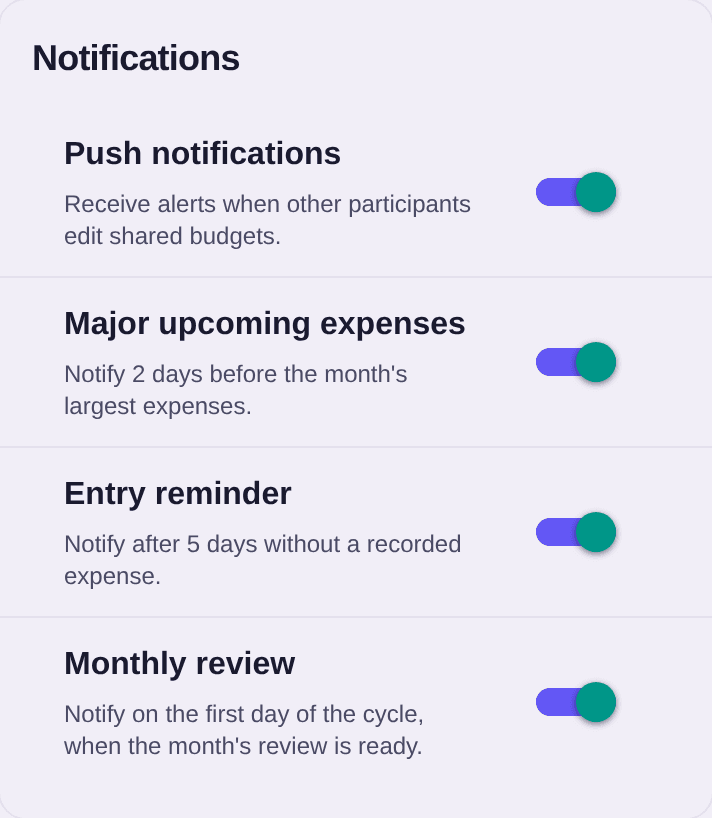
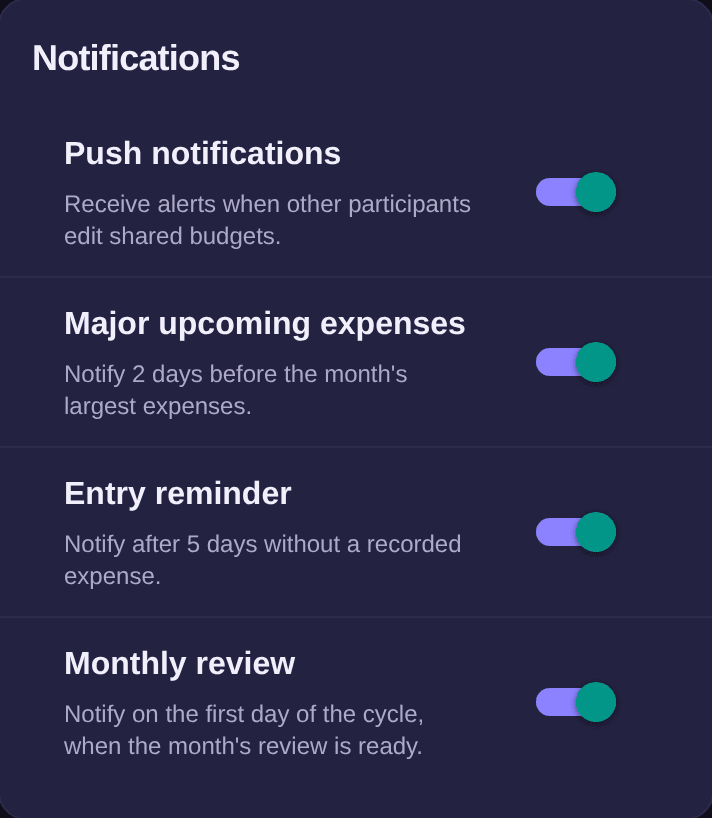
Boney can send you four kinds of notifications, each with its own switch:
- Push notifications: when another participant edits a budget you share, for example when Sam adds an expense in Home. Your own changes never trigger a notification.
- Major upcoming expenses: two days before one of the expenses the home screen lists under Major upcoming expenses, at 6 pm. The notification names the expense, never its amount.
- Entry reminder: when you haven't recorded any expense for 5 days, at 6 pm. If you still record nothing, a second reminder comes a week later, then one a month.
- Monthly review: on the first day of your new cycle, at 6 pm, when the review of the month that just ended is ready. If you already opened it that day, the notification doesn't come.
Turning notifications on or off
- On the home screen, tap the Settings button at the top right.
- Scroll down to the Notifications section.
- Tap the switch of the notification you want to turn on or off.
- If the phone asks for permission to show notifications, allow it.
How reminders follow your expenses
Example. The home screen lists the car insurance, due on Thursday the 12th. On Tuesday the 10th at 6 pm, Boney tells you: “Car insurance in 2 days”. If a larger expense takes its place on the home screen, Boney updates its reminders the next time you open it. Two expenses due on the same day share a single notification.
For the entry reminder, every expense you record on this phone, by hand, from a receipt or through an import, starts the count again.
Tapping an expense or entry reminder simply opens Boney, without changing screens. Tapping the review notification opens the review of the month that just ended.
If no notification arrives
The phone has the final say. If you denied permission, Boney cannot alert you, even with the switches on, and the Notifications section tells you so. The phone does not ask again: open its settings, go to Boney's notifications and allow them.
Good to know
- The settings apply to this phone only. If you use Boney on two devices, set each one.
- When you sign out, this phone stops receiving notifications. They resume when you sign back in.
- To see which expenses count as major, see what the home screen shows.
- To read a review and understand its figures, see reviews.
- To share a budget, see how to invite someone to a budget.