
How do I read the budget list?
What the counters, the filters and each row of the Budgets screen show.
The Budgets screen, in the bottom bar, gathers all your budgets, personal and shared. It shows at a glance which ones are keeping to their target over the current period.
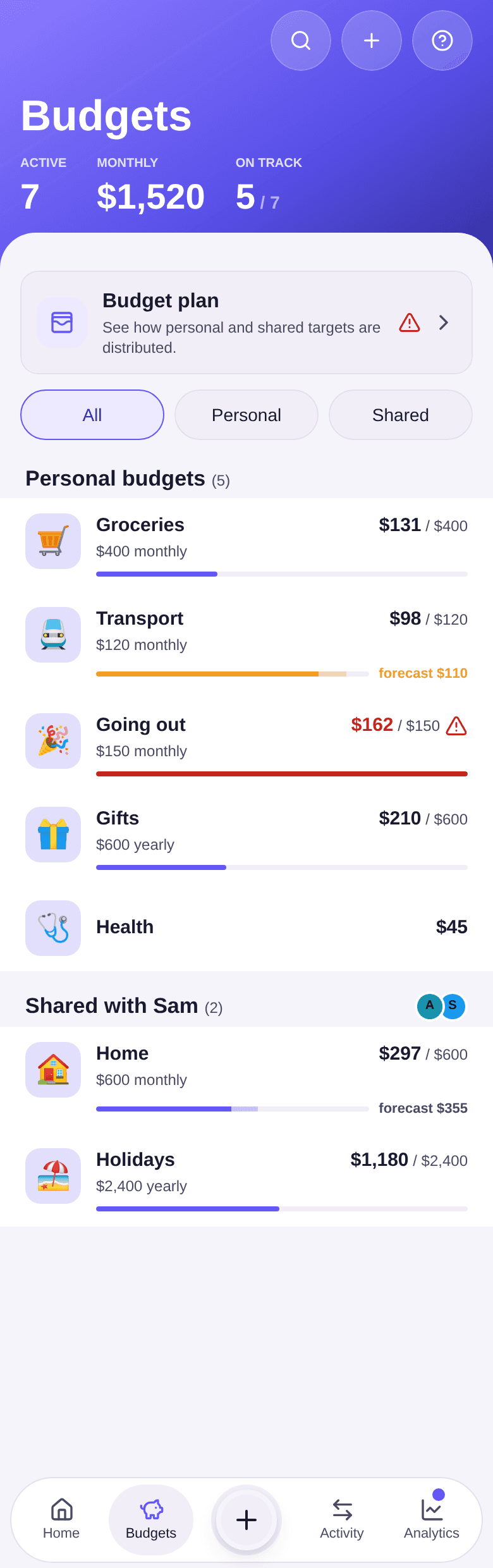
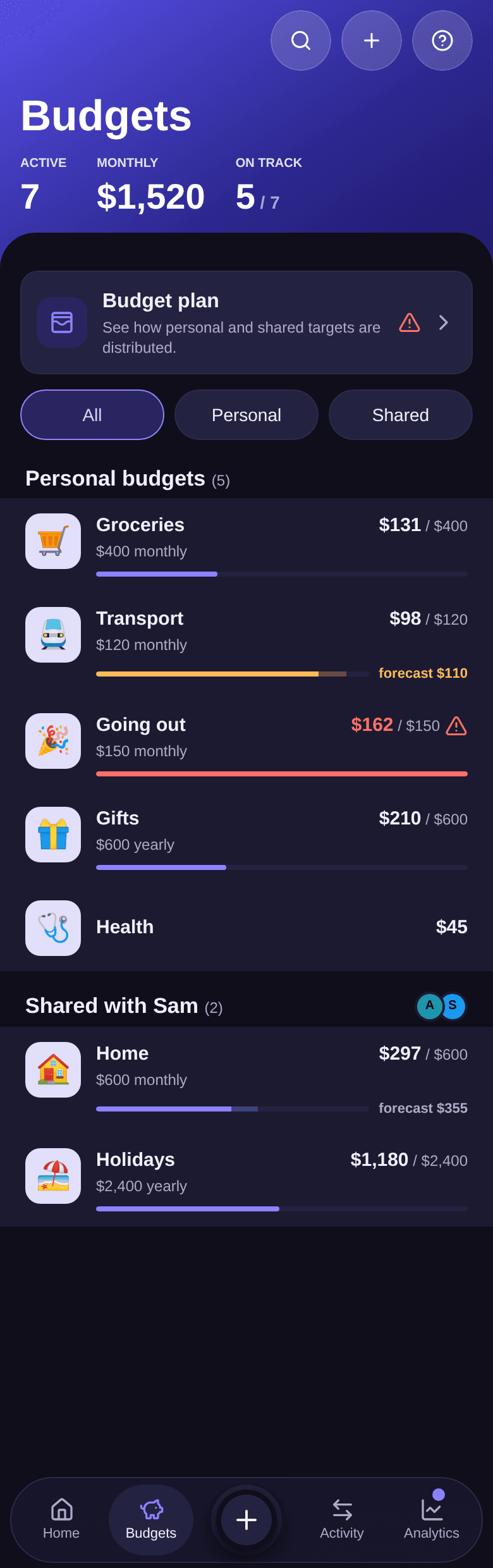
The three counters
At the top of the screen:
- Active: the number of budgets in the list.
- Monthly: the total of your targets, brought back to one month.
- On track: the number of budgets that will not go over their target, out of the total number of budgets.
In the example, seven budgets are active. Going out has already gone over its target and
Health has none: that leaves 5 / 7 budgets on track. For Monthly, the $600 yearly target
of Gifts counts as $50 a month, and the $2,400 of Holidays as $200. On a shared budget, the
whole target counts, not just your share.
Reading a row
Each row covers the budget's current period and all of its expenses, whichever participant paid:
- on the right, what is already spent against the target, for example
$131 / $400; - the bar fills with what is spent, and its lighter part shows what is planned until the end of the period;
forecast …appears when upcoming expenses change the expected total.
The bar turns orange when the forecast gets close to the target, and red when it goes over. A triangle flags an overspend that is expected or already there — see how to track a budget. A budget with no target only shows the amount spent.
Budgets are grouped: Personal budgets, then one section per group of people, for example Shared with Sam. Tap a budget to open its detail.
Filtering and searching
- Tap Personal or Shared to show only one type of budget, and All to go back to the full list.
- Tap the magnifier at the top of the screen to search a budget by its name, or by a participant's name or email.
- Tap the cross that replaces the magnifier to close the search and get the whole list back.
While you search, the counters only cover the budgets found.
Acting on a budget
- Tap the + button at the top of the screen to create a budget — see how to create a budget.
- Swipe a budget row to the left to reveal Edit and Delete.
- Tap the Budget plan card to compare all your targets with your income — see how to read the budget plan.
Good to know
- When someone invites you to a budget, an Invitations filter and a Pending invitations section appear at the top of the list — see how to answer an invitation.
- A budget moves to the shared budgets as soon as someone is invited, even before they answer.