
How does the split work?
Choose how the expenses of a shared budget are shared between participants.
A shared budget's split decides what share of each expense falls to each person. It is a rule, set once for the budget: every new expense follows it, and the balances come from it.
Setting the split
- Open the shared budget, then tap the … button at the top right.
- Tap Set repartition.
- Choose a mode: Equally, By shares or Custom.
- Adjust each participant's share if the mode asks for it.
- Tap Save split.
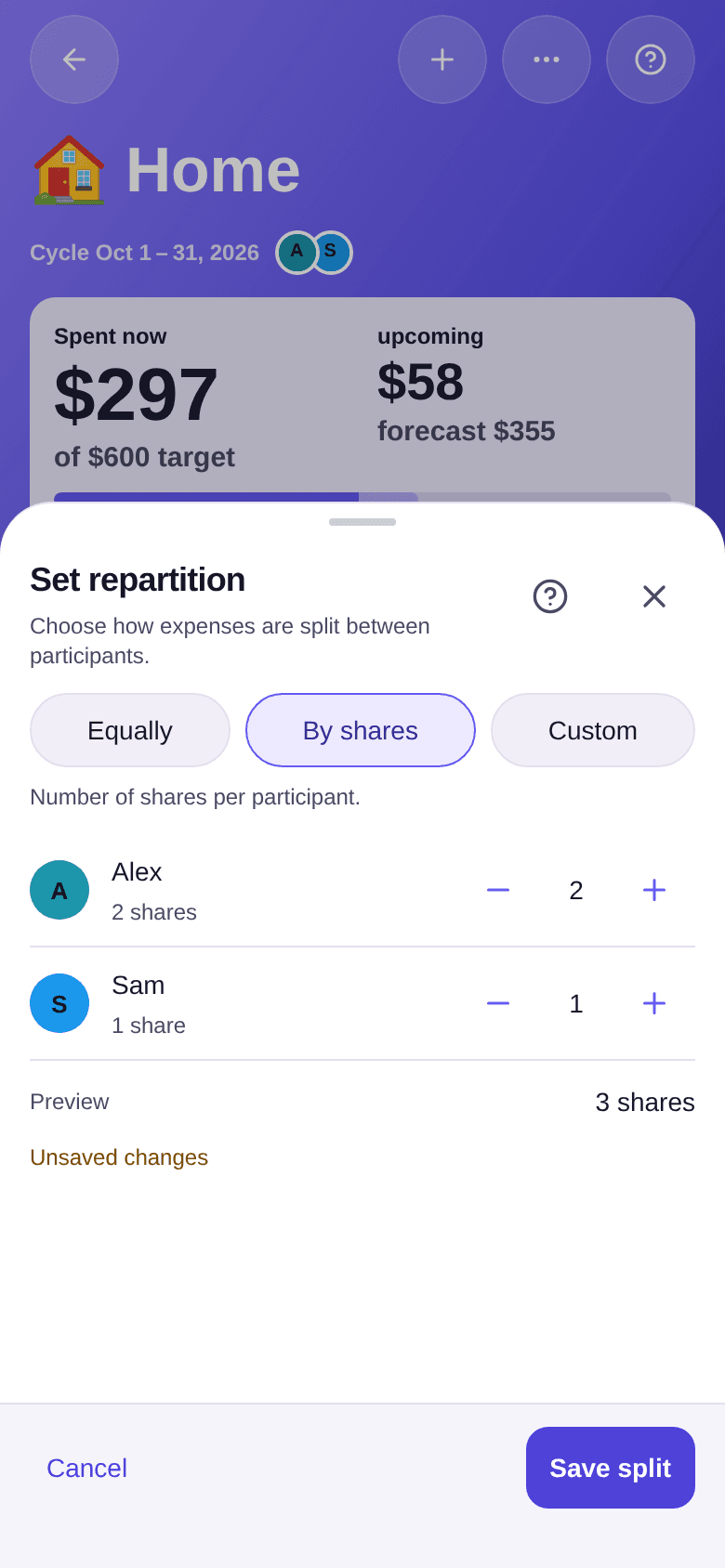
Until you save, the window shows "Unsaved changes".
The three modes
- Equally: everyone pays the same share. With two people, each expense is cut in half.
- By shares: you give each person a number of shares with the + and − buttons, and Boney works out the percentages.
- Custom: you enter an exact percentage for each person. The total must equal 100%, otherwise you cannot save.
Example. Alex earns twice as much as Sam, and they choose By shares: 2 shares for Alex, 1 for Sam, 3 shares in all. For $90 of groceries, Alex covers $60 and Sam $30. If Sam paid the $90, Alex owes Sam $60.
What changes, and what does not
Expenses already entered do not move
The new split applies to the expenses you add afterwards. Expenses already saved keep their shares.
An expense can always be split differently from the budget rule, one at a time — see how to split a single expense.
With each new invitation, the shares go back to an equal split: after inviting someone, come back here if you want another rule. A person who declined the invitation gets no share.
Good to know
- When creating a shared budget, the Split row opens the same setting as soon as an invitation is ready — see how to share a budget from the start.
- If Set repartition does not appear in your menu, you are not allowed to change the shares of this budget.
- To know what everyone owes, see how to read balances.